Allow Authorized Users to Skip Signing Digital Registration Cards
Stay is enhanced to allow authorized users to skip signing digital registration cards for reservations during check-in and generation of keys for guests.
Previously, in properties that use digital registration cards, users had to sign the cards using a payment device or tablet mandatorily.
Permissions
The following new permission must be assigned to use this feature.
-
Stay_SkipRegistrationCardSign: Users with this permission assigned can skip signing the digital registration cards during check-in.
This permission is assigned to the following roles by default:
-
System Administrator
-
Stay Hotel Manager
-
Department Manager
-
Profile Management
-
GSA Supervisor
-
Stay Hotel Supervisor
-
Guest Service Agent (GSA)
Authorized users can skip signing the registration cards displayed when the following operations are performed in a reservation:
-
Reservation ➜ Key section ➜ Make Keys
-
Reservation ➜ Check-In
Skip Signature for Users with SSO and Secondary Authorization Enabled
When an SSO-enabled user with the Stay_SkipRegistrationCardSign permission assigned clicks the Skip button in the Sign Registration Card pop-up screen, the user is navigated to the Process Payment pop-up screen without additional authorization. Users can complete the payment and proceed with the check-in.
Skip Signature for Users with SSO and without Secondary Authorization Enabled
When an SSO-enabled user without the Stay_SkipRegistrationCardSign permission assigned clicks the Skip button in the Sign Registration Card pop-up screen, the user is navigated to the AD used by the property, where users are prompted to enter their single sign on (SSO) credentials.
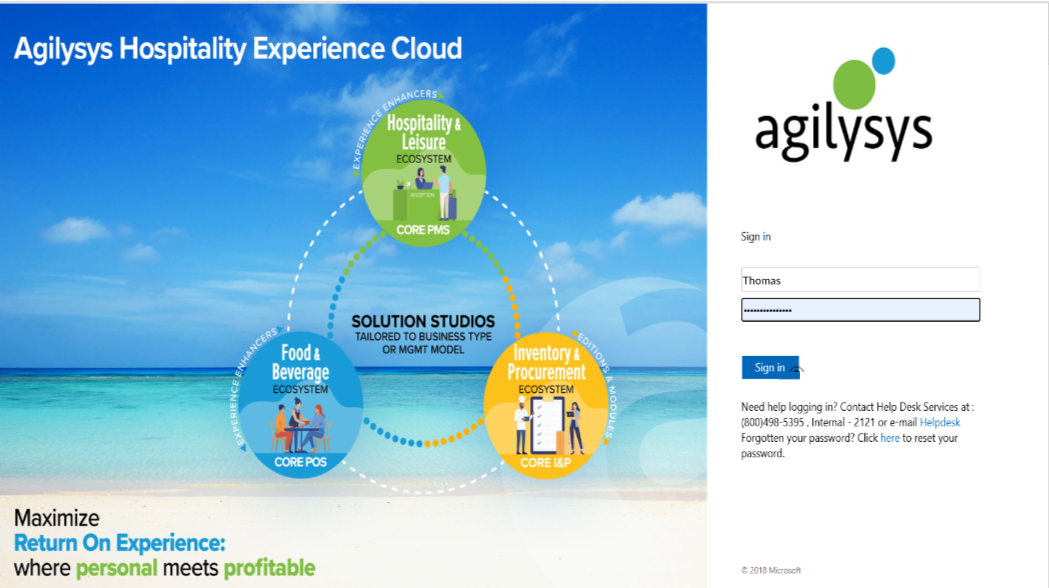
Here, users must enter the credentials of a different user with the permission assigned. The entered credentials are validated and upon successful authentication, the registration card signing process is skipped, and users can continue with the check-in by completing the payment in the Process Payment pop-up screen. When the entered credentials are invalid, the following message is displayed: Please enter the valid credentials.
Skip Signature for Users without SSO and Secondary Authorization Enabled
When a non-SAML user with the Stay_SkipRegistrationCardSign permission assigned clicks the Skip button in the Sign Registration Card pop-up screen, the user is navigated to the Process Payment pop-up screen without additional authorization. Users can complete the payment and proceed with the check-in.
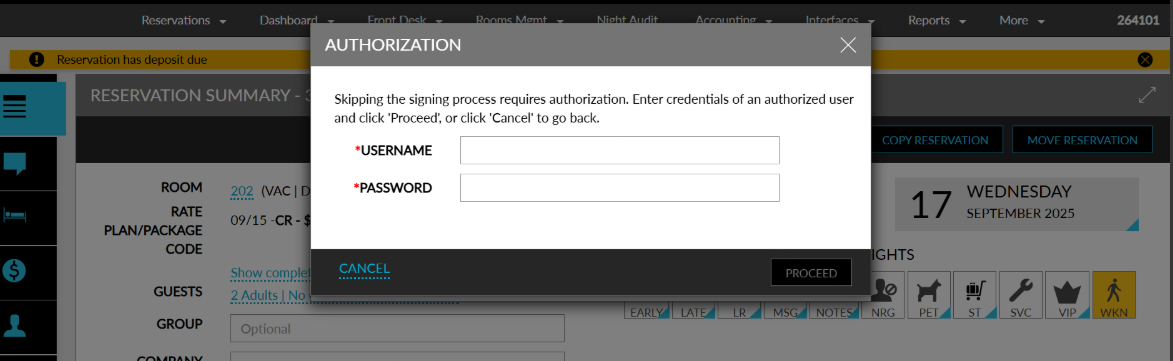
Skip Signature for Users without SSO Enabled and with Secondary Authorization Enabled
When a non-SAML user without the Stay_SkipRegistrationCardSign permission assigned clicks the Skip button in the Sign Registration Card pop-up screen, the Authorization pop-up screen is displayed that prompts users to enter their credentials.
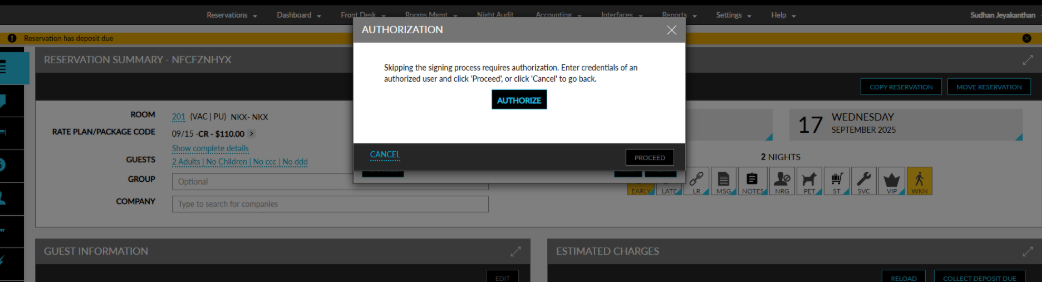
When users click Proceed, the entered credentials are validated and upon successful authentication, users are navigated to the Process Payment pop-up screen, where users can proceed with the check-in after the completion of the payment.
When the credentials entered are invalid, the following message is displayed: Please enter the valid credentials. When users click the Cancel button or the Close icon, the Authorization pop-up screen is closed, and the signature capture process is aborted.
Capture Signature for Both Authorized and Non-Authorized Users
When both the Payment Device and Tablet options are selected for a property, users with or without the Stay_SkipRegistrationCardSign permission assigned can capture the signature of the guest in the Sign Registration Card pop-up screen by selecting the preferred device.
When the Payment Device option is selected, the selected device is prompted for signature capture. Users can select the Previous button to modify the device selected for the signature capture. Once the signature is captured, the user is navigated to the Process Payment pop-up screen. When the Cancel button or Close icon is clicked, the Sign Registration Card pop-up screen is closed, and the signature capture process is aborted.
When the Tablet option is selected, users can continue to capture the signature as per the existing functionality.
Records Created
Whenever the signature capture process is skipped, a record is created in the Audit Log screen (Reports ➜ Audit Log) and the Reservation History section of reservations that displays the following details:
-
Username of the user who skipped signing the registration card
-
Date and time when the registration card was skipped
When a user skips signing the registration card for a reservation at the time of check-in and then performs an Undo Check-In, the Sign Registration Card pop-up screen will be displayed, and the user will be prompted to capture the guest’s signature when the reservation is checked in again.